• Skip to content
  • Skip to primary sidebar

Header Right

  • Our CPA Firm
  • About Us
  • Contact
  • FREE CONSULTATION

QuickBooks

Working with Downloaded Transactions in QuickBooks Online

February 20, 2019 by Admin

Downloading transactions into QBO is the easy part. You still have work to do once they’re on board.

Its ability to download financial transactions is one of the five best things about QuickBooks Online. Without it, you’d spend a lot of time on tedious data entry, verifying which checks and deposits had cleared and entering new ones.

Instead, you can easily connect to your bank and bring in all your activity from the previous hours or day. QuickBooks Online stores this neatly in a register and provides tools for you to further describe and classify each transaction.

Setting Up the Connection

Haven’t connected your financial institution to QuickBooks Online yet? It’s easy. Click the Banking link in the toolbar, then Add Account in the upper right. The Find your bank window opens. Start entering the name of your bank, credit card company, or service like PayPal in the blank field. A list of potential matches will drop down; you simply select the one you want. A window like this will open:

ll you need to do to start downloading transactions into QuickBooks Online is select your financial institution and enter the User ID and Password you use to connect directly to the site.

You will have to go through some security procedures, and then QuickBooks Online will download 90 days of transactions (you can shorten this if you’d like). You’ll also be asked which QBO account should receive the transactions. After a few minutes, the register for that account will appear, displaying the transactions you just downloaded.

Warning: The mechanics of connecting to your bank and downloading your first batch of transactions may sound easy, but if everything is not absolutely clear to you as you’re going through the process, please contact us sooner rather than later.

Working with Transactions

Once you’ve downloaded a set of transactions, you’ll want to look at them. Again, click the Banking link in the navigation toolbar. Your accounts will appear in small boxes at the top of the page, along with two balances: the one that came from the financial institution and the one in QuickBooks Online. Select the one you want by clicking on it, and its register will open.

Tip: QuickBooks Online generally updates your accounts once daily. If you want to launch a manual update at any time, click on Update in the upper right corner.

Let’s look at one downloaded transaction to see what you can do with it. Make sure the For Review column is highlighted above the register. Select a transaction by clicking on it. A window like this will open below it:

QuickBooks Online does more than simply download financial transactions: It lets you define them in greater detail.

There are several options here, including:

  • Add to register. If you’re satisfied with the information as is, just click the Add button to the right (not pictured here).
  • Split. If you want to split the amount/category (Supplies, Tools, etc.)/class of a transaction, click Split (also off to the right and not pictured). A window will open to let you specify that.
  • Assign categories. QuickBooks Online may automatically make assignments to obvious categories, which you can change if incorrect. You can also click the down arrow to the right of that field and select your own from the list.
  • Bill an expense to a customer. Did you purchase something that needs to be billed to a customer? Click in the box under Billable and select the correct one from the drop-down list that opens.
  • Find matches. This can get complicated, and we recommend you let us work with you on it. Let’s say you entered an invoice in QuickBooks Online, and an income item for that exact amount gets downloaded from your bank. QBO will assume that those two “match,” and display them in the In QuickBooks column. You can click Undo if this is incorrect. But you can also click Find match in the transaction window, and QBO will open a list of possibilities.

As you can see from browsing the lists of downloaded transactions, there’s a lot to learn here. We’d be happy to get together and walk you through your first explorations of these powerful features.

Send us an e-mail or call Rikard & Neal, CPAs, PLLC, today at 901-685-9411 to discuss your QuickBooks accounting needs with an experienced CPA. Or, request a free consultation online.

Filed Under: QuickBooks

5 QuickBooks Online Add-On Apps You Should Consider Adding

October 10, 2018 by Admin

Not finding quite everything you need in QuickBooks Online? Here are some handy add-on apps available.

QuickBooks Online may work for you just fine as is. After all, it was designed to meet the needs of the millions of small businesses that want to manage and track their income and expenses, create records and transactions, and run reports to gauge their financial health. QuickBooks Online was also designed to grow along with your business. But there’s no need for Intuit to add internal features to do so. In fact, that would make it too expensive and unwieldy for many companies.

Instead, Intuit has partnered with other small business websites to provides add-ons–applications that extend the usefulness of QuickBooks Online in one or more areas, like accounts receivable and payable, inventory, and expense-tracking. They integrate easily to share data and do the extra work you need. Here are some of them to consider.

Bill.com

Bill.com automates your accounts receivable and payable processes. It supports electronic billing and payment, as well as multiple approval levels.

You can certainly enter and pay bills using QuickBooks Online. And you can send invoices to customers and receive payments. But adding a connection to Bill.com gives you more advanced options for accounts receivable and payable. Simply send your bills to Bill.com by scanning, emailing, faxing, or taking a picture with your smartphone. The site’s automation tools turn them into digital records and route them through your specified approvers. Once approved, they’re paid electronically or by paper check. Invoices are just as easy to process; customers can pay by using PayPal, credit card, or ACH. Bill.com’s mobile app makes it possible to keep up with invoices and bills while you’re out of the office.

Expensify

Are your employees still paper-clipping receipts to handwritten expense reports? This method is unnecessarily time-consuming – and often inaccurate. Expensify solves both problems. Your staff can take photos of receipts with their smartphones. Expensify then converts the expense information into coded digital records and submits them for approval based on your company’s policies. Credit card purchases can be automatically imported, too. All data is synchronized with QuickBooks Online in real-time and coded to reflect your preference of QBO’s expense accounts, customers/jobs, etc. Once you’ve approved a report, you can have the money deposited in the employee’s bank account the next day.

TSheets Time Tracking

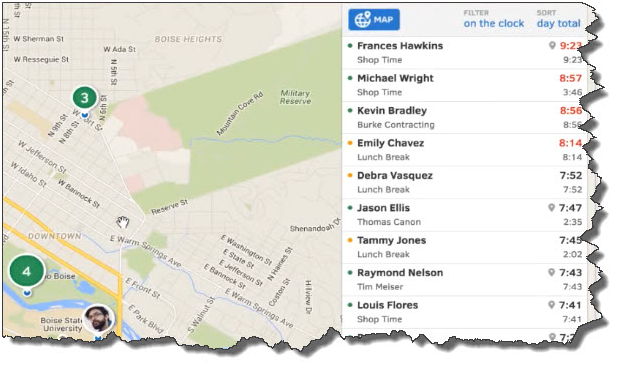
TSheets employee scheduling software automates tasks that QuickBooks Online doesn’t do: scheduling and remote time-tracking for your hourly employees. Your staff no longer has to fill in paper timesheets. Instead, they can use their smartphones to track their hours and GPS location points. And while Excel is certainly better for creating schedules than paper, TSheets takes over that task, too. After you’ve approved timesheets, that information is sent over to QuickBooks, ready for use in your payroll processing.

quickbooks

Your employees can easily “punch” in and out using their smartphones. TSheets also uses GPS technology so that your staff members’ locations are always known to you.

SOS Inventory

QuickBooks Online performs some basic inventory management tasks. You can create records for items and use them in transactions, and keep track of the number of items in stock so you know when to reorder (or have a sale). SOS Inventory goes well beyond those capabilities. You can create sales orders, track cost history and serial numbers, and document work-in-progress (WIP). SOS Inventory supports multiple locations and the entire pick/pack/ship process.

Insightly CRM

You can create thorough customer records in QuickBooks Online and document some of your interaction. But it doesn’t facilitate true Customer Relationship Management (CRM) nor project management. Insightly CRM does both. It lets you build exceptionally thorough customer profiles so that you can view social streams, email history, and any events, opportunities, or events related to them. Its project management features include the ability to track by pipelines or milestones, define contact roles and custom fields, and generate advanced project reporting.

QuickBooks Online Integration Key

All of these apps can work in standalone settings, but their integration with QuickBooks Online and their mobile capabilities create powerful partnerships that help you serve both your customers and your employees in ways that QuickBooks Online alone can’t.

We’re not trying to sell you applications here. Our concern is that you’re getting as much out of QuickBooks itself as you can. We can steer you toward add-on solutions if that seems necessary, but we’re always happy to work with you on getting to know QuickBooks Online better and matching its capabilities to your company’s needs. As Certified QuickBooks ProAdvisors in Memphis, TN, we can work with you to ensure that you are getting the most out of your QuickBooks accounting software. Give us a call at 901-685-9411 or learn more about our QuickBooks accounting services.

Filed Under: QuickBooks

7 Best Practices for QuickBooks Online

April 12, 2018 by Admin

Even if you’ve been using QuickBooks Online for a long time, it’s good to step back and evaluate your actions.

“Best practices” aren’t enforceable rules. They’re simply guidelines businesses commonly follow in one area or another. If you’re in retail, for example, one best practice might be to always ask customers checking out if they found everything they were looking for. This serves two purposes: It conveys a feeling of concern for the customer’s shopping experience, and it may also lead to increased sales.

QuickBooks Online has many best practices, some of which may serve multiple purposes, including these:

    • They keep your company data safe and clean.
    • They provide insight on your financial status.
    • They save time.
    • They can lead you to better relationships with customers and vendors.

Are any or all the following common practices for your business?

Reconcile accounts regularly.

One of QuickBooks Online’s most useful features is its ability to connect to your financial institution’s websites and download cleared transactions. QuickBooks Online also offers tools to help you keep your accounts reconciled online, like you used to do every month when your paper statement came. Reconciling accounts can help you uncover errors. It gives you a truer picture of your cash flow, and it improves the accuracy and timeliness of some reports.

It’s not a particularly pleasant process, but you should be reconciling your accounts regularly in QuickBooks Online. We can help.

Clean up your lists.

Some lists in QuickBooks Online aren’t overly long. You don’t have to worry about, for example, Payment Methods, Terms, or Classes. Your lists of customers and vendors, products, and services, on the other hand, can grow unwieldy over the years. This means it can take more time than it should to scroll through lists when you’re using those entities in transactions. It also puts unnecessary stress on your company file. If you can’t delete any, at least make them inactive.

Never leave QuickBooks Online open when you leave your work area.

This goes for everyone, even people who work alone and don’t access their company files away from their work areas. The obvious reason is to keep someone else from getting in and authorizing payments, for example, or otherwise compromising your financial information. It also protects the integrity of your data file in case your internet connection suffers some kind of outage.

Keep track of 1099 vendors.

Whether your company uses 10 vendors or a hundred or more, you may have to supply at least some of them with an IRS Form 1099 at about the same time you’re preparing W-2s for employees. Your 1099-related tasks will be much easier if those individuals and/or companies are earmarked. If you think vendors might need 1099s when you create their records in QuickBooks Online, click in the box to the left of Track payments for 1099 in the lower right corner. Not sure? Ask us.

Classify everything with care.

Every time you have to create a record or transaction where categories are involved (i.e., Classes, Customers and Vendors, Territories), check and double-check that you’ve assigned them the correct classification. Errors here can result not only in problems with daily workflow, but your reports will not be accurate. A related best practice: Create a meaningful group of Classes, and use them faithfully. They’ll help you make better business decisions.

To create your list of Classes, click the gear icon in the upper right and select All Lists | Classes | New.

View reports on a regular basis.

There are some advanced financial reports in QuickBooks Online that we should be creating for you on a regular basis, either monthly or quarterly. These include Profit and Loss, Balance Sheet, and Statement of Cash Flows. The mechanics of creating them aren’t difficult, but analyzing them is. You should be running reports on your own at frequencies that you think would be helpful, like A/R Aging Detail, Unpaid Bills, and Sales by Class Detail.

If you’ve been using QuickBooks Online for a while, you could probably come up with your own list of best practices. If you’re new to the site, consider scheduling some time with us to go over more of them. Develop good habits from the start, and there won’t be nearly as much need for troubleshooting down the road.

If you have any questions about QuickBooks accounting or need QuickBooks support and training, don’t hesitate to reach out to our Memphis CPA Firm. You can give us a call at 901-685-9411 or request a free consultation online.

Filed Under: QuickBooks

5 QuickBooks Reports You Need to Run in January

January 10, 2018 by Admin

The new year has begun. Does your accounting to-do list look like a clean slate, or are critical tasks from last year still nagging?

Getting all of your accounting tasks done in December is always a challenge. Besides the vacation time you and your employees probably took for the holidays, there are those year-end, Let’s-wrap-it-up-by-December-31 projects.

How did you do last month? Were you ready to move forward when you got back to the office in January? Or did you run out of time and have to leave some accounting chores undone?

Besides paying bills and chasing payments, submitting taxes and counting inventory in December, there’s another item that should have been on your to-do list: creating end-of-year reports. If you didn’t get this done, it’s not too late. It’s important to have this information as you begin the New Year. QuickBooks can provide it.

A Report Dashboard

You may be using the Reports menu to access the pre-built frameworks that QuickBooks offers. Have you ever explored the Report Center, though? You can get there by clicking Reports in the navigation toolbar or Reports | Report Center on the drop-down menu at the top of the screen.

QuickBooks’ Report Center introduces you to all of the software’s report templates and helps you access them quickly.

As you can see in the image above, the Report Center divides QuickBooks’ reports into categories and displays samples of each. Click on one of the tabs at the top if you want to:

  • Memorize a report using any customization you applied.
  • Designate a report as a Favorite
  • See a list of the most Recent reports you ran.
  • Explore reports beyond those included with QuickBooks, Contributed by Intuit or other parties.

Recommended Reports

Here are the reports we think you should run as soon as possible if you didn’t have a chance to in December:

Budget vs Actual

We hope that by now you’ve at least started to create a budget for this coming year. If not, the best way to begin is by looking at how close you came to your numbers last year. QuickBooks actually offers four budget-related reports, but Budget vs Actual is the most important; it tells you how your actual income and expenses compare to what was budgeted.

Budget Overview is just what it sounds like: a comprehensive accounting of your budget for a given period. Profit & Loss Budget Performance is similar to Budget vs Actual. It compares actual to budget amounts for the month, fiscal year-to-date, and annual. Budget vs Actual Graph provides a visual representation of your income and expenses, giving you a quick look at whether you were over or under budget during specific periods.

Income & Expense Graph

You’ve probably been watching your income and expenses all year in one way or another. But you need to look at the whole year in total to see where you stand. This graph shows you both how income compares to expenses and what the largest sources of each are. It doesn’t have the wealth of customization options that other reports due, but you can view it by date, account, customer, and class.

A/R Aging Detail

QuickBooks’ report templates offer generous customization options.

Which customers still owe you money from last year? How much? How far past the due date are they? This is a report you should be running frequently throughout the year. Right now, though, you want to clean up all of the open invoices from last year. A/R Aging Detail will show you who is current and who is 31-60, 61-90, and 91+ days old. You might consider sending Statements to those customers who are way past due.

A/P Aging Detail

Are you current on all of your bills? If so, this report will tell you so. If some bills slipped through the cracks in December, contact your vendors to let them know you’re on it.

Sales by Item Detail

January is a good time to take a good look at what sold and what didn’t before you start placing orders for this coming year. We hope you’re watching this closely throughout the year, but looking at monthly and annual totals will help you identify trends – as well as winners and losers.

QuickBooks offers some reports in the Company & Financial and Accountant & Taxes categories that you can create, but which really require expert analysis. These include Balance Sheet, Trial Balance, and Statement of Cash Flows. You need the insight they can offer on at least a quarterly basis, if not monthly. Connect with us, and we can set up a schedule for looking at these.

Social media posts

January is a good time to run reports you didn’t have time to in December. Talk to us about which are most important.

QuickBooks provides templates for some reports that you probably need help analyzing, like Balance Sheet. We can help with these.

Have you explored QuickBooks’ Report Center? It offers a variety of tools and guidance for managing reports.

Did you create a budget last year? Now’s the time to run QuickBooks’ Budget vs Actual report. For help with all your QuickBooks needs for your business, you can contact our Memphis QuickBooks ProAdviors at 901-685-9411. Or, learn more about our QuickBooks Accounting Services on our website.


Filed Under: QuickBooks

  • « Previous Page
  • Page 1
  • Page 2
  • Page 3

Primary Sidebar

Our Memphis CPA Services

  • Small Business Acccounting
  • QuickBooks Accounting
  • New Business Advisory
  • Tax Services
  • Accounting by Industry

Search

Categories

  • Business Best Practices
  • Business Tax
  • Covid
  • Incorporation
  • Individual Tax
  • QuickBooks
  • Real Estate
  • Small Business Taxes
  • Uncategorized

Connect

Memphis, TN CPA Firm

5100 Wheelis Drive, Suite 110
Memphis, TN 38117
901-685-9411

Copyright © 2018 · https://www.rikardneal.com/blog